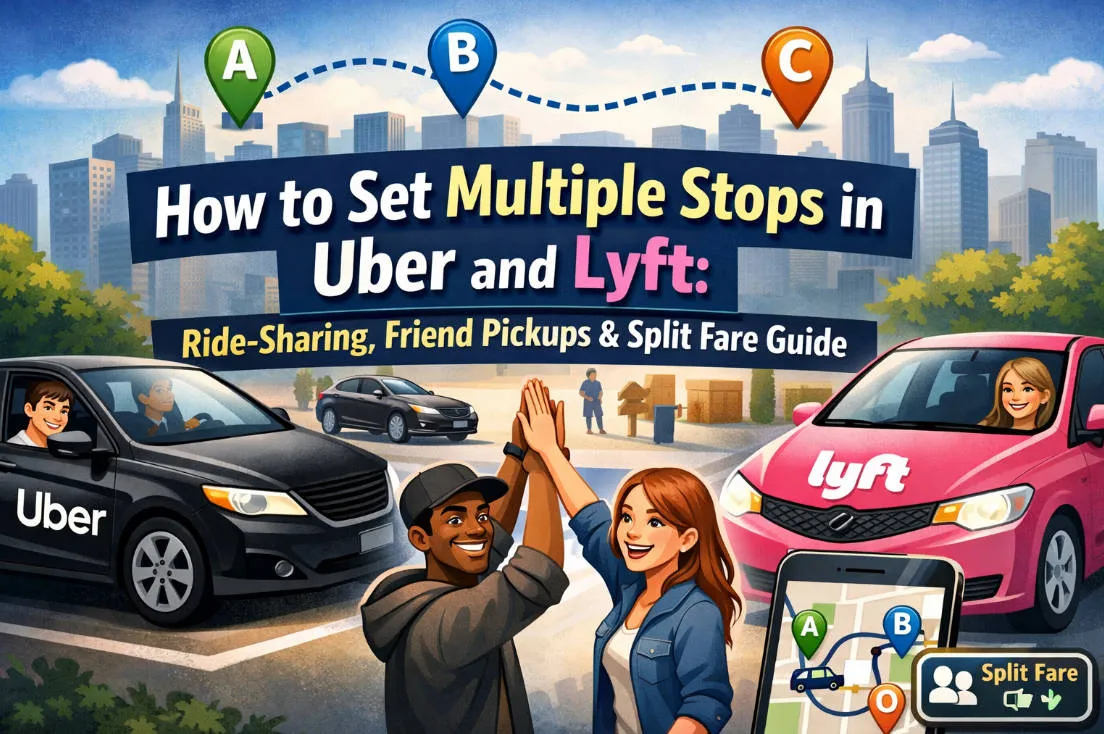
Navigating the world of ride-sharing in 2026 is more intuitive than ever, but mastering the "Multiple Stops" feature remains the ultimate pro-traveler skill. Whether you're picking up friends for a night out, running a quick errand at a pharmacy, or dropping off colleagues after a meeting, knowing how to manage your route can save you time and money.
In this comprehensive 2026 guide, we’ll walk you through the step-by-step process for both Uber and Lyft, explain the latest "Split Fare" protocols, and provide essential etiquette tips to keep your driver rating at a perfect 5.0.
🚗 Why Use Multiple Stops?
Using multiple stops in Uber or Lyft is incredibly useful for several real-life scenarios. Here’s why it matters:
1. The Convenience of "One and Done"
The primary benefit is continuity. You don't have to scramble to request a new car while standing on a sidewalk with groceries or in the rain.
-
Drop off friends: Perfect for a group night out where everyone lives in the same general direction.
-
Quick Errands: Stopping to drop off a dry-cleaning bag or picking up a prescription.
-
Picking up a friend: Grabbing someone on your way to a shared destination like a concert or airport.
2. Upfront Pricing Transparency
When you add stops before requesting the ride, the app gives you an upfront price for the entire journey.
-
If you booked three separate rides, you might face "surge pricing" for the second or third leg of your trip.
-
By booking it all at once, you lock in the rate (though minor wait-time fees may apply if you take longer than 3 minutes at a stop).
3. Safety & Peace of Mind
For parents or friends, this feature acts as a safety tool.
-
Route Tracking: You can share your "trip status" with someone, and they can see every stop you make and exactly when you reach your final destination.
-
No Waiting Outside: You stay in the car until your friend is safely at their door, then the driver continues with you.
📱 Step-by-Step Guide: Adding Multiple Stops in Uber (2026 Update)
In 2026, Uber’s multi-stop feature is more robust than ever, allowing for up to 5 additional stops (for a total of 6 locations) on most standard rides.
Whether you are planning the trip ahead of time or realizing you need a coffee mid-route, here is the updated guide to making it happen.
Option 1: Adding Stops Before You Request (Best Practice)
Doing this locks in your upfront price and ensures your driver knows the full route before they accept the ride.
-
Open the App: Tap the "Where to?" box.
-
The "+" Icon: Look to the right of the destination input field. You’ll see a small [ + ] icon. Tap it.
-
Input Your Stops: Each time you tap the plus, a new destination line appears. You can add up to 5 stops.
-
Organize the Route: * To reorder, press and hold the three lines (≡) next to a destination and drag it up or down.
-
To remove, tap the [ X ] next to that specific stop.
-
-
Confirm: Tap "Done" and then select your ride type (UberX, Comfort, etc.).
Option 2: Adding/Editing Stops Mid-Ride
If your plans change while you are already in the car, you can still adjust the route.
-
Swipe Up: While on the active trip screen, swipe up from the bottom of the app.
-
Edit Trip: Tap "Add or Change" next to your destination details.
-
Add Your Stop: Use the same [ + ] icon method to add a new point.
-
Confirm the Change: Tap "Done." * Note: Your fare will automatically update based on the new time and distance. Your driver will also receive a notification on their screen that the route has changed.
Important Rules for 2026
-
The 3-Minute Rule: Uber officially requests that stops be kept under 3 minutes. Drivers are paid a very small "wait time" fee (often just cents per minute), so staying longer can lead to a lower rider rating or the driver ending the trip early.
-
Excluded Services: You generally cannot add stops to UberX Share (formerly Pool) because it interferes with the routes of other passengers.
-
Wait-Time Fees: In 2026, Uber has refined its "Multi-Stop Fee." If you exceed the grace period at a stop, the app automatically begins charging a per-minute rate that goes directly to the driver.
-
The "Hourly" Alternative: If you have 5+ stops or need a driver for more than 30 minutes, check for the "Uber Hourly" option in your app. It allows you to "rent" the driver by the hour for unlimited stops within a set distance.

📱 Step-by-Step Guide: Adding Multiple Stops in Lyft (2026 Update)
In 2026, Lyft continues to offer a streamlined multi-stop feature. While Uber allows up to five stops, Lyft typically limits users to two intermediate stops plus your final destination (three locations total) to keep routes efficient for drivers.
Here is the updated guide for navigating stops in the Lyft app.
Option 1: Adding Stops Before You Request
This is the most reliable way to get an accurate upfront price and ensure your driver is willing to complete the full itinerary.
-
Enter Your Destination: Tap the "Where are you going?" search bar.
-
Tap the Plus [+] Icon: To the right of the destination field, you will see a small plus sign. Tap it to create a new "Add stop" field.
-
Enter Addresses: * Input your first stop in the middle field.
-
Input your final destination in the bottom field.
-
-
Reorder if Needed: Lyft usually assumes your new stop is the first place you want to go. If it’s in the wrong order, tap the double arrows or the drag handle (≡) to swap the sequence.
-
Select Ride Type: Choose your preferred ride (Lyft, XL, etc.) and tap "Select Lyft."
Option 2: Adding a Stop Mid-Ride
If you’re already in the car and need to make a quick detour, you can update the route live.
-
Tap "Edit Trip": On the active ride screen, tap the destination area or the map.
-
Add/Change: Tap the [ + ] icon to add your stop.
-
Confirm Update: The app will notify the driver of the change and recalculate your fare.
-
Note: It is polite to ask your driver before doing this, as they may have another ride "queued up" immediately after yours.
-
Lyft's "Pro-Rider" Rules for 2026
| Rule | Details |
| The 5-Minute Limit | Lyft officially asks riders to keep stops under 5 minutes. If you take longer, the driver has the option to end the ride at that stop. |
| Wait-Time Fees | After a short grace period (usually 2 minutes), a per-minute wait fee kicks in. In 2026, these rates vary by city but are paid directly to your driver. |
| Shared Rides | You cannot add stops to a "Wait & Save" or "Shared" ride, as these are optimized for multiple separate passengers. |
| Item Policy | Never leave your phone, bags, or expensive items in the car during a stop. If the driver has to leave due to a long wait, getting your items back can be a major hassle. |
The "Multi-Ride" Feature (New for 2026)
If you have a complex day planned (e.g., an interview, then a lunch, then the airport), Lyft now offers "RideChains." This allows you to schedule a sequence of entirely separate rides at specific times rather than keeping one driver waiting.

👫 Picking Up Friends & the “Group Ride” Feature
One of the most convenient reasons to use multiple stops is when you’re picking up friends. Both Uber and Lyft have features designed to make group trips smoother and more cost‑effective.
1. Uber: The "Group Ride" Feature
Instead of you typing in every friend’s address manually, Uber now lets your friends "join" the ride from their own phones.
-
How to Start It: Open the app and tap "Where to?" then select the "Group Ride" option (usually found near the ride types like UberX).
-
The Invite Link: Uber will generate a link you can text to your group chat.
-
Friends Input Their Own Info: When your friends click the link, they enter their own pickup or drop-off location. Uber’s AI then optimizes the route automatically.
-
Fairer Fare: This feature often allows for a 30% discount compared to booking individual rides, and the app can split the cost evenly among everyone who joined the link.
-
Capacity: You can typically invite up to 3 friends (4 people total) for a standard UberX Group Ride.
2. Lyft: "RideChains" vs. Group Pickups
Lyft has focused on "RideChains" and a revamped Shared ride system for 2026.
-
For Picking Up Friends: Lyft still relies primarily on the [ + ] Add Stop feature. You enter your friend’s house as the first stop.
-
"RideChains" for Complex Nights: If you are meeting friends at a bar, then going to a club, then a late-night diner, you can use RideChains to schedule three separate pickups in one sequence. This ensures you aren't paying "wait time" fees while you’re inside the venue.
-
The "XL" Strategy: If your group is larger than 4, Lyft’s app will strongly nudge you toward an XL ride. In 2026, drivers can "filter" for only XL rides, so booking the right size ensures your ride isn't cancelled by a driver in a compact car.
Comparison: Which should you use?
| Feature | Best For... | Benefit |
| Manual Stops | Picking up a partner or a quick errand. | You keep total control of the route. |
| Uber Group Ride | A night out with 3+ friends in different spots. | Friends enter their own addresses; cheaper fare. |
| Lyft RideChains | An itinerary with gaps (e.g., Dinner -> 2 hours later -> Concert). | No "wait time" fees; different drivers for each leg. |
💡 2026 Etiquette: The "Ready on the Curb" Rule
With the 2026 updates, both apps have increased Wait Time Fees to support driver earnings.
-
Uber/Lyft Drivers now start earning wait fees significantly faster (often after just 1–2 minutes).
-
Pro Tip: If you're picking up a friend, text them "Be outside!" 5 minutes before you arrive. If the driver has to wait 5 minutes for your friend to find their shoes, your "cheap" group ride could end up costing more than separate Ubers!

💸 How to Split Fares in 2026
In 2026, splitting a fare has evolved from a simple button to a more integrated part of the ride experience. Depending on whether you use Uber or Lyft, the process varies slightly in terms of timing and fees.
1. Uber: The "Split Fare" Feature
Uber remains the most straightforward for splitting the bill mid-ride.
-
When to do it: Once the ride has started but before it ends.
-
Step-by-Step:
-
Swipe up from the bottom of the screen while in the ride.
-
Tap your selected payment method.
-
Tap "Split Fare."
-
Select your friends from your contact list or enter their phone numbers.
-
-
The Cost: In 2026, Uber typically charges a $0.25 fee per person for using this service.
-
The Catch: Your friends must accept the invite on their phones before the ride ends. If they don't, you pay the full amount.
2. Uber: The "Group Ride" Auto-Split (New for 2026)
If you used the Group Ride feature mentioned earlier, you don't even need to click "Split."
-
Since everyone joined via a link and entered their own info, Uber automatically divides the fare equally among all participants at the end of the trip.
-
Bonus: This often comes with a 30% group discount compared to booking individual rides.
3. Lyft: Manual Cost Sharing
As of 2026, Lyft has moved away from a native "Split Fare" button in many regions, favoring their "RideChains" and Shared models.
-
The Workaround: Most Lyft users in 2026 use the Venmo/CashApp integration.
-
How it works: After the ride, your receipt will have a "Split with friends" button that deep-links directly to Venmo or CashApp with the exact math already done for you.
-
Lyft Pink/Business: If you have a Lyft Pink or Business profile, you can sometimes set "default splitters" (like a partner or roommate) for specific recurring routes.
2026 Pro-Tips for Fare Splitting
| Strategy | Best For... | Benefit |
| Uber Split Fare | One-off rides with acquaintances. | Official, clean, and no "IOU" texts later. |
| Group Ride | Friends going to the same party. | Automatic splitting + 30% discount. |
| Venmo/CashApp | Close friends or Lyft users. | No 25-cent fee per person. |
⚠️ Important Note on Payment Methods
In 2026, most apps do not allow you to split a fare if you are using Apple Pay, Google Pay, or Gift Cards as your primary payment. To use the in-app split feature, the "organizer" usually needs to have a credit or debit card selected.
🔄 Alternative Apps and Features
While Uber and Lyft dominate the ride-hailing market in the United States, several alternative apps and mobility tools can offer similar or complementary features—especially for ride-sharing, route planning, or cost comparison. Knowing these alternatives can help you find cheaper rides, better routes, or more flexible travel options.
1. Alto: The "Errand-Friendly" Premium Pick
If you have a complex afternoon of errands, Alto is widely considered the best alternative in 2026.
-
The Difference: Unlike Uber/Lyft, Alto uses company-owned luxury SUVs and W-2 employee drivers.
-
Why it's better for stops: Because drivers are paid by the hour (not just by the ride), they are significantly more patient with multi-stop itineraries.
-
Feature: You can "book by the hour" directly in the app, which is the gold standard for running 3–4 errands without the stress of a ticking clock or a frustrated driver.
2. Waze: The "One-Stop" Commuter
Waze is still the king of navigation, but its "Add a Stop" feature is strictly for simple detours.
-
The Limit: Waze allows you to add only one stop to an active route.
-
Best Use Case: Finding the cheapest gas or a coffee shop that is directly on your existing path. It is built for efficiency, not complex itineraries.
-
2026 Update: Waze now features "conversational reporting," allowing you to ask, "Waze, find a dry cleaner on my way," and it will automatically insert the stop for you.
3. BlaBlaCar: Long-Distance Multi-Stops
For traveling between cities in 2026, BlaBlaCar is the top choice for carpooling with stops.
-
The Feature: Drivers often list a long-distance route (e.g., NYC to Boston) and include "Intermediate Cities" as stops.
-
For Riders: You can book a "seat" for just one leg of a multi-stop journey, making it much cheaper than a standard rideshare.
4. Specialized & Regional Alternatives
-
Hitch: Specifically designed for city-to-city travel (e.g., Austin to Houston). In 2026, they offer "shared" or "private" tiers. Private rides allow for custom stops along the highway corridor.
-
Curb: This app connects you to professional taxi fleets. In many cities, Taxis have a "meter-on" policy that can be more flexible for quick "hop-out, hop-in" stops compared to Uber's rigid app-based destination system.
-
GoKid: A specialized carpool app for parents. It doesn't use professional drivers but helps families coordinate multi-stop "school runs" or "practice carpools" with people they know.
Summary of Alternatives
| App | Best For... | Max Stops |
| Alto | Luxury, errands, and patience. | Unlimited (with Hourly booking) |
| Waze | Quick, mid-commute detours. | 1 stop |
| Hitch | City-to-city travel. | Limited to highway route |
| Curb | Avoiding surge pricing during stops. | Flexible (Meter-based) |
⁉️ Frequently Asked Questions (FAQ)
Q1: Why can't I add a stop to my UberX Share (Pool) ride?
A: Multiple stops are generally not available for "Share" or "Pool" options because these rides are already optimized for multiple passengers from different parties.
Q2: Does adding a stop increase the price?
A: Yes. The "Upfront Price" is calculated based on time and distance. Adding a stop increases the distance and adds "Wait Time" charges, even if the car is stationary.
Q3: Can I change my destination after the driver has started?
A: Yes, but always inform the driver verbally first as a courtesy. Update the app immediately so the driver’s navigation updates.
Q4: What if my stop takes longer than expected?
A: Communication is key. If you’re running over the 3-5 minute limit, offer to tip the driver extra or suggest they end the trip so you can call another ride. This prevents a low rider rating.
Q5: How many stops can I add to a ride?
A: Most rides allow up to 3 stops total, including your final destination. This typically means two additional stops between pickup and the final drop-off. However, the exact limit may vary slightly depending on the city, app version, and ride type.
Q6: What happens if someone doesn’t accept the split request?
A: If someone declines or ignores the request, the main rider will be charged the full fare. That’s why it’s best to ask everyone to accept the split immediately.
Conclusion: Mastering multiple stops in 2026 makes ride-sharing a powerful tool for social and professional life. By using the "Group Ride" features and keeping your stops brief, you ensure a smooth experience for both yourself and your driver.
Ready to ride? Open your app, hit that "+" button, and get your whole crew to the destination together!